An Elementor header is the chrome every page shares: logo, navigation, one action. Most “broken” sites are not broken pages. They are a demo header still assigned, a second header stacked on the theme’s, or a sticky bar that covers the first heading. It is the first thing you edit and the easiest thing to get wrong.
This is how to create an Elementor header in Theme Builder so it matches the rest of the site. It is not a mega-menu tutorial—that choice is in mega menu vs simple nav. It is not “should it stick”—that is in sticky header in Elementor. If you are choosing Pro vs the theme’s builder for chrome, start with whether you need Elementor Pro.
Build it once, as a template
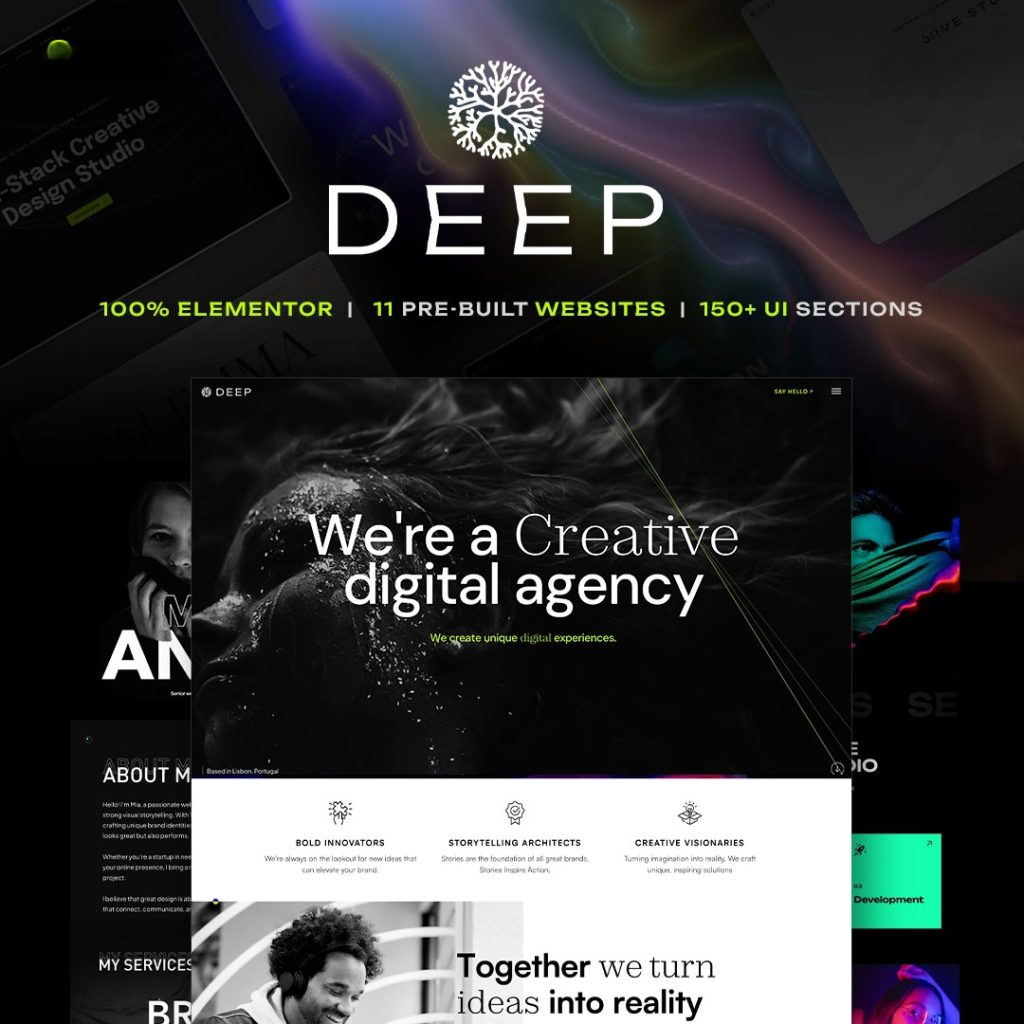
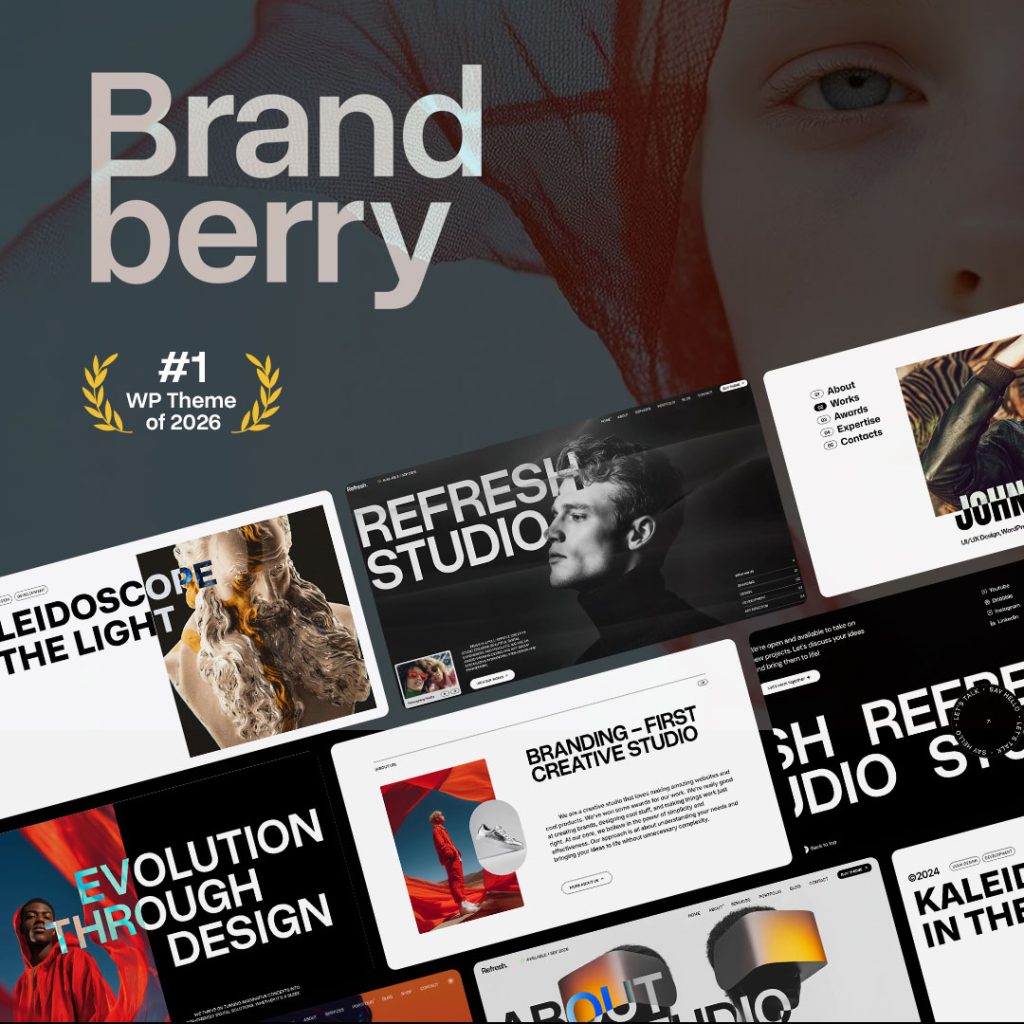
Do not design the header on the homepage canvas. That copy will not follow you to Contact. Create a Header template in Theme Builder (Animation Addons → Theme Builder, or the theme’s Header / Footer settings), set the display condition to the whole site, and edit it with Elementor. On Brandberry, Deep, Pine, or Willows, that template type is already there. Assign one header. Two headers with overlapping conditions is how logos double up.
Set colors, type, and buttons in Elementor global styles before you style the bar. A one-off navy header on a green site is leftover demo.
What the bar actually needs
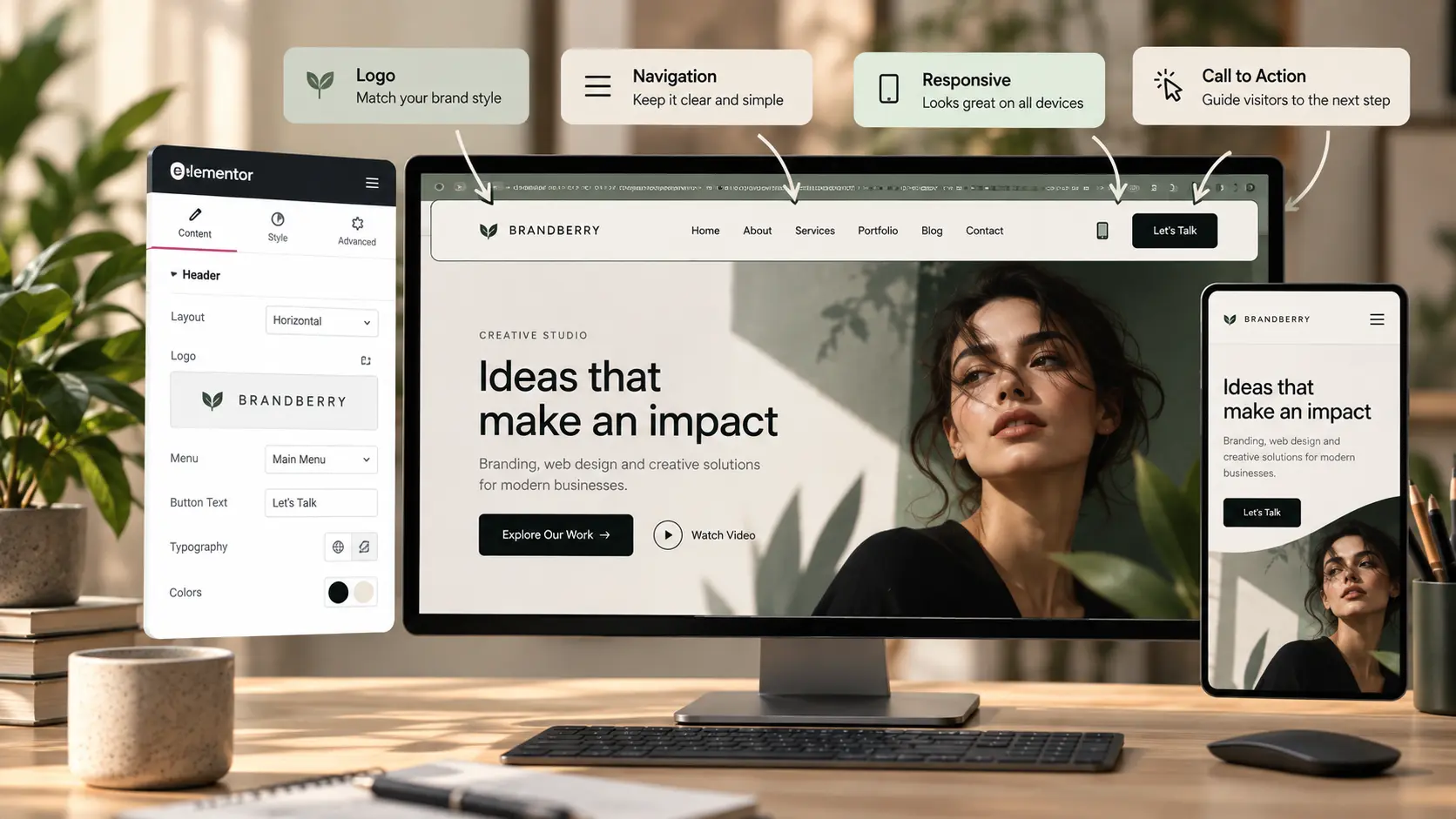
- Logo — SVG, linked to home, sized once. Not a different mark on inner pages unless you truly have a second brand.
- Primary nav — the same menu WordPress already has. Reassign the location; do not rebuild the links as a button row you will forget to update.
- One action — Contact, Shop, or “Start a project.” Two competing buttons split the bar. The contact page is the destination, not a form stuffed in the header.
Phone and social icons belong in the footer unless someone actually answers the phone. A language switcher or cart is fine when the site uses them; they are noise on a five-page brochure.
Mobile before you polish desktop
The hamburger, off-canvas, or a short stacked bar must work before you add a transparent overlay. Test the first screen of the homepage: the header plus a sticky setting plus an announcement bar is how the H1 disappears. See mobile design mistakes. Clients should be able to change the button label without opening nested containers—easy for clients to edit.
Import one header from the demo library, replace the logo the same day, and delete unused widgets (search that does not search, a second CTA). If you would rather not own the chrome, the install and customization lines on the services page exist for that. Or send the live URL with what the header must include.