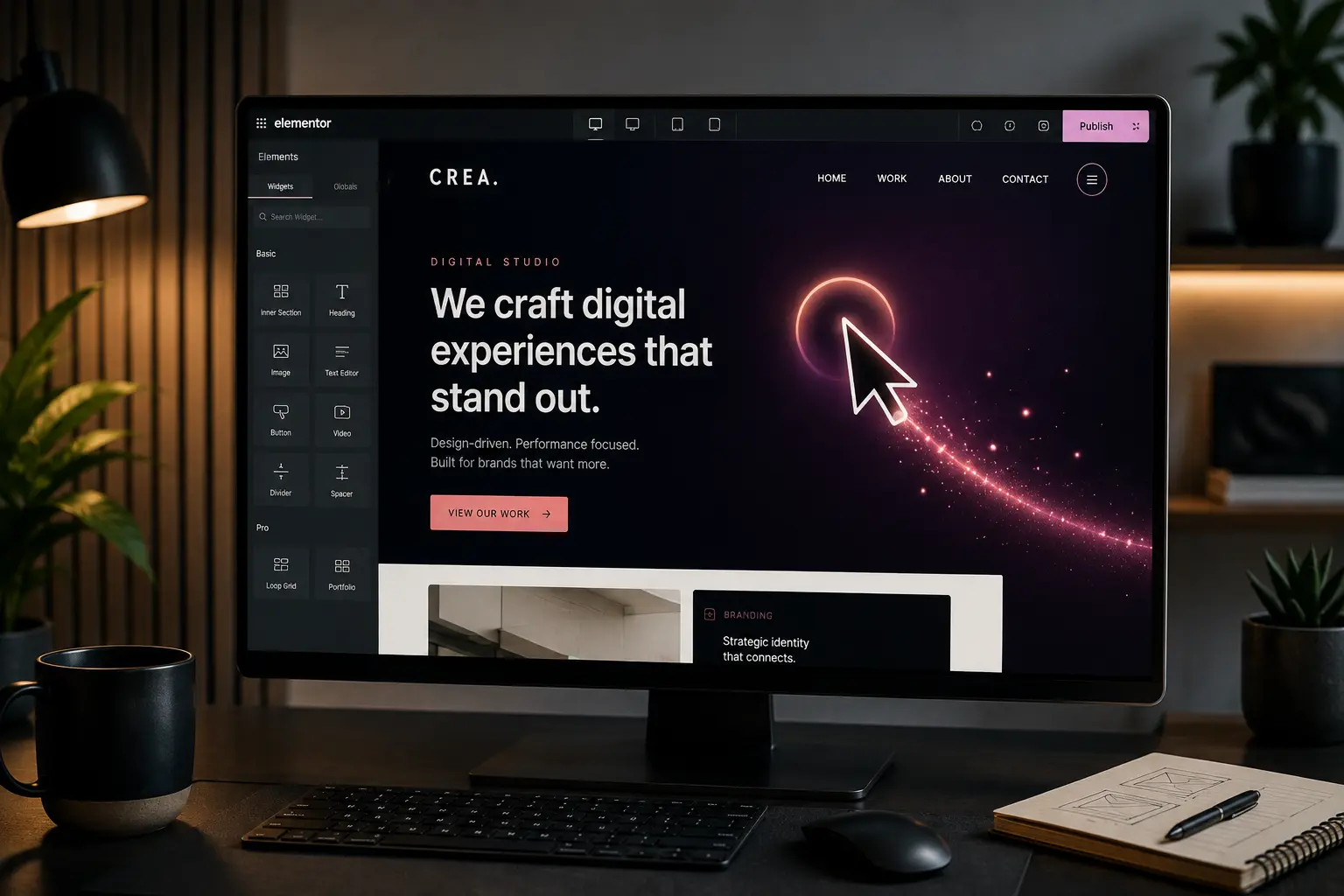
A custom cursor can make an Elementor site feel considered: a small circle that grows over links, a magnetic ring on buttons, a quiet trail across a dark portfolio. It can also make the same site feel slow, gimmicky, or hard to use. The difference is not the effect. It is whether the cursor supports the work on the page.
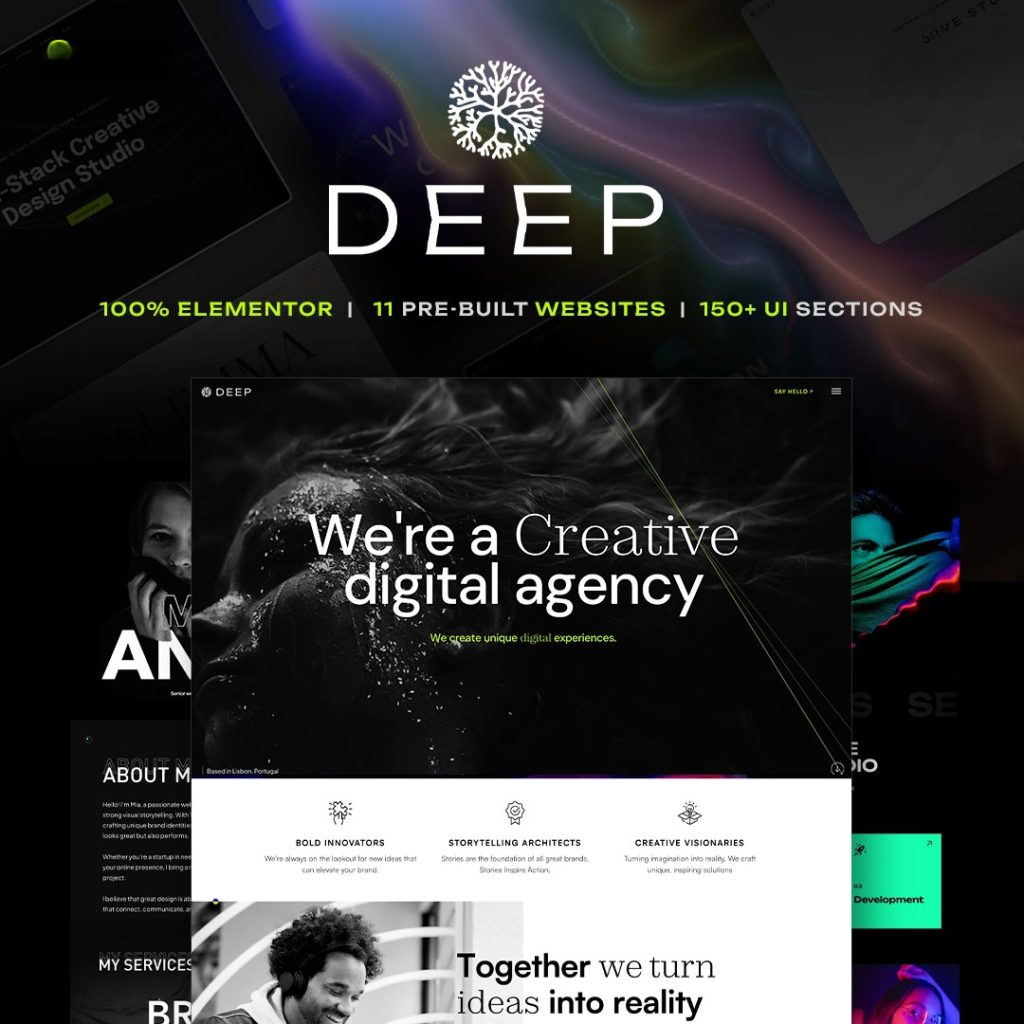
This guide covers how custom cursor effects actually work in Elementor, when they help a creative site, and how to set them up without extra plugins or a second animation stack. The examples use Deep, TreeThemes’ Elementor theme for agencies and portfolios, because it includes cursor styles that are designed for that kind of site. The same principles apply if you build the effect another way.
If you are still choosing a foundation, read how to choose an Elementor WordPress theme first. A cursor will not save a weak layout.
What a custom cursor should do
On a default WordPress site the pointer is the browser arrow. A custom cursor replaces or follows that pointer with a designed element: a dot, a ring, a fluid trail, or an SVG shape that reacts when you hover a link.
Used well, it does three things:
- It signals that the site is interactive, especially on image-heavy portfolios
- It highlights clickable areas without extra chrome
- It matches a dark, motion-led art direction that a default arrow undercuts
Used poorly, it hides the real pointer, lags behind the mouse, fights form fields, and keeps running on phones that have no mouse at all.
When cursor effects are worth it
They fit:
- Creative agency and studio sites
- Photographer and designer portfolios
- Case-study pages where hover is part of the storytelling
- Dark, cinematic landing pages with a small number of primary actions
Skip them, or keep them off key templates, when:
- The site is a store, booking flow, or long form
- The client needs maximum accessibility and familiar controls
- You already have heavy scroll animation, Lottie, and video in the hero
- Most traffic is mobile. There is no cursor on a phone
A law firm, a checkout, or a documentation site rarely needs a custom pointer. A Deep-style creative homepage often does, as long as links still feel obvious.
How Deep handles custom cursors
Deep includes a Custom Cursor panel in theme settings, so you do not need a separate cursor plugin. Open Theme Settings → General → Custom Cursor and enable it.
You can apply the cursor to the full website, or only to a container that has a CSS class. The default class is deep-cursor-area. Add that class to an Elementor section or container if you want the effect on the homepage hero and portfolio grid, but not on the blog, cart, or contact form.
Deep ships several styles:
- Follow circle — a small disc that grows over links. The safest default.
- Smokey fluid trail — a WebGL trail. Striking on dark heroes; heavier than a circle. Keep the trail size modest.
- Magnetic circle / noisy circle — the cursor eases toward links and can change accent color on hover. Good for buttons and menu items.
- SVG warp, noise, pulse, and glow — more experimental. They look best with blend mode set to Difference and a light stroke on mixed backgrounds.
You can set idle size, hover size, inner color, outer stroke, and an accent color for magnetic hover. Leave Disable on touch devices on. Deep already treats custom cursors as a desktop pointer feature.
Preview the live demos at the Deep Elementor preview on a computer. Judge the cursor the same way a client will: does it help you find the next click?
A setup that stays usable
- Enable the cursor on staging, not production.
- Start with the follow circle. Only move to fluid or SVG if the brand needs that energy.
- If the inner pages feel busy, switch scope from full website to
deep-cursor-areaon the sections that benefit. - Check links, buttons, Elementor buttons, and form submits. Deep treats those as hover targets. Add
data-deep-cursor-hoverto custom clickable blocks that should behave like links. - Test blend mode. Difference with a white stroke usually stays visible on both dark and light sections. A colored cursor on a matching background disappears.
- Turn the cursor off in Elementor preview if it gets in the way while you design. Deep does not load it in the editor canvas.
Do not run two cursor systems
Deep’s theme cursor is separate from Animation Addons’ site-wide AAE Cursor and from the Cursor Hover Effect extension.
AAE Cursor (Elementor → Site Settings) is another global pointer. Cursor Hover Effect is different: it shows text or a styled overlay when you hover a specific widget, which is useful on portfolio cards (“View project”) without replacing the mouse for the whole page.
Pick one global cursor. If Deep’s Custom Cursor is on, keep AAE Cursor off. Use Cursor Hover Effect only where a label on hover adds information, not as a second pointer.
Performance and accessibility
A circle that follows the mouse is cheap. A fluid WebGL trail is not. If the homepage already uses scroll-smoother, split text, and autoplay video, add the lightest cursor or none.
Deep disables heavy motion scripts on many phones, including cursor assets, which is the right default. Still test:
- Does the real pointer remain visible enough to click small targets?
- Do form fields, sliders, and maps still work?
- Does the effect stutter on a laptop that is not a design workstation?
- Is the cursor off on a real phone, not only in a resized desktop window?
Respect prefers-reduced-motion in the rest of the page even if the cursor is subtle. People who asked the OS to reduce motion should not get a loud trail. For broader speed work, see how to speed up an Elementor website.
Design rules that keep it from looking like a demo
- Match cursor color to the brand, not to the demo’s white-on-black default, unless the site is actually that dark.
- Keep hover growth moderate. A 12px idle circle that becomes 40px on links is readable. A 120px blob covers the button label.
- Do not hide the native cursor on text-heavy pages. Readers need an I-beam to select copy.
- If every section uses a different hover trick, none of them feel intentional. One cursor language per site is enough.
Final thoughts
Custom cursor effects in Elementor are a finishing layer, not a strategy. They work when the site already has a clear offer, fast images, and a layout people can use with a normal pointer. They fail when they are the only “premium” thing on an otherwise generic demo.
If you are building a creative Elementor site and want the cursor designed as part of the theme rather than bolted on, Deep’s Custom Cursor settings are the straightforward path: enable, choose a style, limit it to the sections that need it, and keep it off touch devices. Then spend your remaining time on the work the cursor is pointing at.
See Deep for the Elementor starter sites and cursor options, and customize immediately so the motion belongs to the brand.