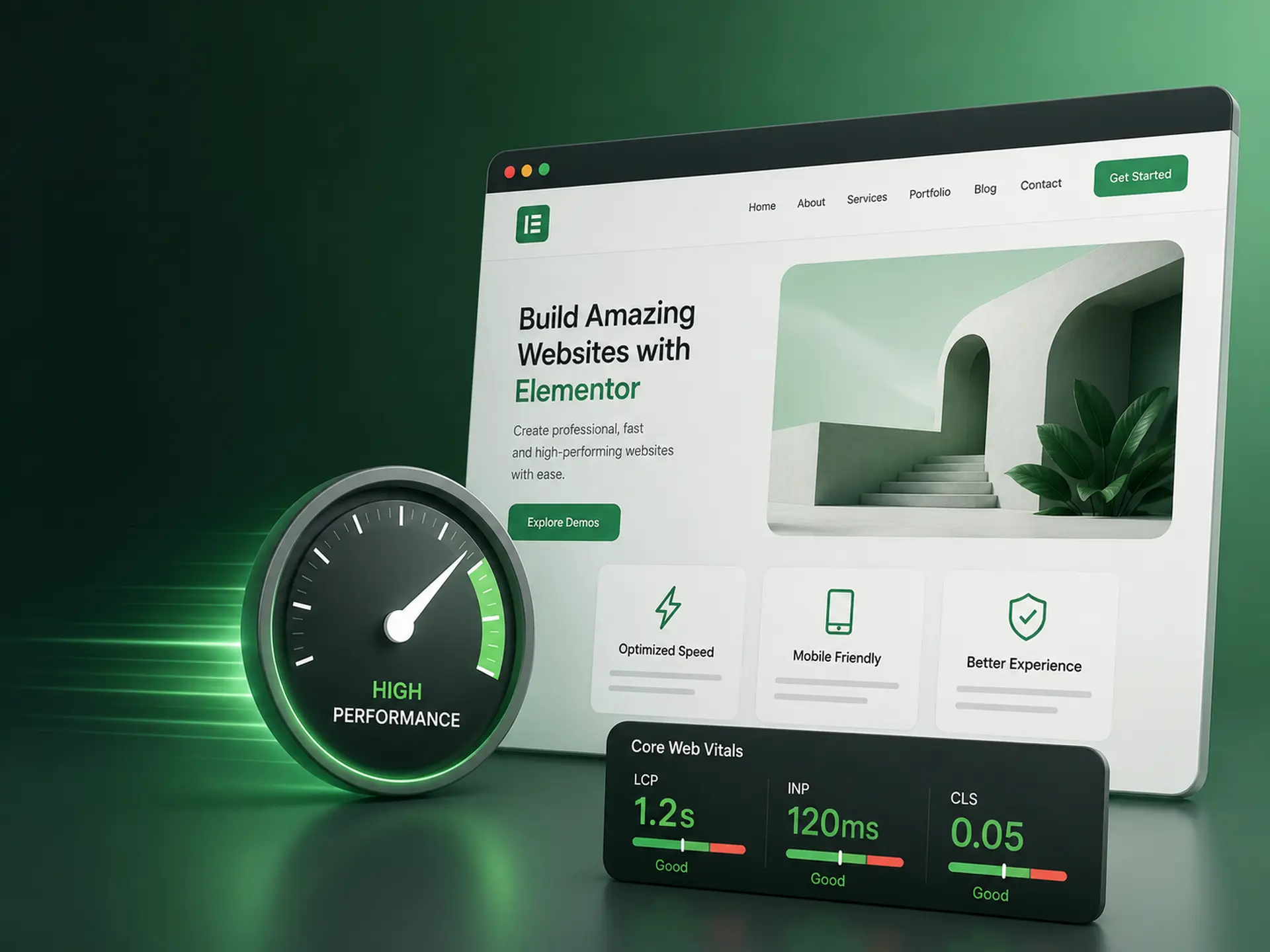
Elementor makes it possible to create beautiful, professional WordPress websites without writing code. But as your website grows, adding more pages, images, animations and plugins can also affect performance.
The good news is that Elementor itself doesn’t have to mean a slow website.
With the right theme, hosting and optimization choices, you can build an Elementor website that looks great and loads quickly across desktop and mobile devices.
In this guide, we’ll show you how to speed up an Elementor website using practical optimizations you can apply to almost any WordPress project.
Why Elementor Website Speed Matters
Website performance affects much more than how quickly a page appears on screen.
A faster website can improve the overall user experience, reduce frustration and make it easier for visitors to browse your content, portfolio, services or products.
Performance is also relevant to SEO. Google uses page experience signals, including Core Web Vitals, as part of its ranking systems.
For business websites, speed can also affect conversions. If a visitor clicks a link and has to wait too long for the page to become usable, there is a greater chance they will leave.
That makes performance something worth considering from the beginning of an Elementor project rather than trying to fix it only after the website is finished.
1. Start With a Well-Optimized Elementor Theme
Your WordPress theme provides the foundation for your Elementor website, so theme selection can have an important impact on performance.
A theme may include its own CSS, JavaScript, animations, fonts, widgets and additional functionality. If too many resources are loaded unnecessarily, every page can become heavier.
When choosing an Elementor WordPress theme, look for one that:
- Is actively maintained and updated
- Is built specifically with Elementor in mind
- Uses optimized CSS and JavaScript
- Allows unnecessary functionality to be disabled
- Works well across desktop, tablet and mobile
- Does not require dozens of additional plugins
If you’re still deciding which theme to use, read our guide on how to choose the best Elementor WordPress theme.
2. Choose Good WordPress Hosting
You can optimize Elementor extensively, but slow hosting will always limit the results.
Your hosting server is responsible for processing WordPress requests and delivering content to visitors. A slow or overloaded server can therefore increase page response times before Elementor even becomes relevant.
When comparing WordPress hosting, consider features such as:
- Modern PHP versions
- Server-side caching
- Fast SSD or NVMe storage
- HTTP/2 or HTTP/3 support
- Built-in CDN integration
- Automatic backups
- WordPress-specific optimization
The cheapest hosting package may be sufficient for a small personal website, but businesses and high-traffic websites can benefit considerably from better infrastructure.
3. Optimize Your Images Before Uploading Them
Large images are one of the most common reasons websites become unnecessarily heavy.
A high-resolution photograph straight from a camera can easily be several megabytes, even though the website may display it at only a fraction of its original dimensions.
Before uploading an image, resize it appropriately for where it will appear.
For example, if an image will never appear wider than 1200 pixels, there is usually little reason to upload a 5000-pixel version.
You should also consider modern image formats such as WebP or AVIF, which can significantly reduce file size while maintaining good visual quality.
WordPress image optimization plugins can also automatically compress images and generate optimized versions.
4. Use Lazy Loading for Images and Videos
A page does not necessarily need to load every image immediately.
Lazy loading delays loading certain images and media until they are close to becoming visible in the visitor’s browser.
This is especially useful for long Elementor pages containing:
- Portfolio galleries
- Large image sections
- Blog grids
- Testimonials with photographs
- Embedded videos
- Product galleries
WordPress provides native lazy loading for many images, while performance plugins can provide additional controls.
However, avoid lazy loading the main hero image or other important above-the-fold content when doing so delays the largest visible element of the page.
5. Don’t Install a Plugin for Every Small Feature
One of the advantages of WordPress is its enormous plugin ecosystem. It is also very easy to install more plugins than you actually need.
The number of plugins alone doesn’t determine website speed. A single poorly optimized plugin can cause more problems than several lightweight ones.
Still, every plugin adds another component that needs to be maintained and potentially introduces additional scripts, styles or database queries.
Review your WordPress plugins periodically and ask:
- Do I still use this plugin?
- Does Elementor or my theme already provide this feature?
- Is the plugin loading resources on pages where they’re not needed?
- Has the plugin been updated recently?
If a plugin no longer serves a purpose, remove it rather than simply leaving it deactivated indefinitely.
6. Be Selective With Elementor Add-ons
Elementor add-on packs can provide useful widgets and design possibilities, but installing several large widget collections just to use one or two elements is rarely ideal.
Before installing an additional Elementor package, check whether the functionality you need already exists in Elementor or your theme.
This is one reason a purpose-built Elementor theme can be useful.
For example, TreeThemes’ Elementor themes include additional design elements and functionality intended to work as part of the theme, reducing the need to assemble a website from many unrelated add-on packages.
You can explore our Elementor WordPress themes to see the different designs and features available.
7. Use Animations With Purpose
Animations can make a website feel more polished and interactive, especially for portfolios, agencies and creative websites.
But more animation isn’t automatically better.
Multiple scroll effects, large background videos, complex entrance animations and continuously moving elements can increase browser workload, particularly on mobile devices.
Use animation to guide attention or enhance storytelling rather than applying an effect simply because it is available.
A good approach is to keep important interactions and transitions while simplifying or disabling more demanding effects on smaller devices when appropriate.
8. Optimize Google Fonts and Custom Fonts
Typography has a major impact on website design, but fonts also require additional resources.
If your Elementor website loads several font families with many different weights, the browser may need to download numerous font files before rendering everything correctly.
Try to keep your typography system simple.
For example, a website might use:
- One primary font family
- Regular weight for body text
- Medium or semibold for navigation
- Bold weight for headings
Loading every available weight from 100 to 900 is rarely necessary.
Locally hosting fonts can also provide additional control and may help with both performance and privacy requirements.
9. Enable Page Caching
WordPress dynamically generates pages using PHP and database queries.
Page caching can store a ready-to-deliver version of a page so WordPress doesn’t need to rebuild it for every visitor.
Many managed WordPress hosts provide server-level caching automatically. If yours doesn’t, a reputable caching plugin can provide similar functionality.
Depending on your setup, performance tools may also offer:
- Browser caching
- CSS optimization
- JavaScript optimization
- Database cleanup
- Preloading
- CDN integration
Be careful when enabling multiple optimization features at once. Test your website after making changes, especially when combining or delaying JavaScript.
10. Consider Using a CDN
A Content Delivery Network, or CDN, stores copies of static website assets across servers in different geographical locations.
When someone visits your website, those resources can be delivered from a server closer to them.
This can be particularly useful if your audience is international.
A CDN can help deliver resources such as:
- Images
- CSS files
- JavaScript files
- Fonts
- Other static assets
Many modern WordPress hosting providers and performance services make CDN setup relatively straightforward.
11. Keep WordPress, Elementor and Your Theme Updated
Updates aren’t only about adding new features.
WordPress, Elementor and theme developers regularly improve compatibility, fix bugs, address security issues and optimize existing functionality.
Keeping your website updated can therefore contribute to a healthier and more reliable installation.
Before performing major updates on a production website, create a backup and, when possible, test significant changes on a staging website first.
12. Clean Up Your WordPress Database
Over time, WordPress databases can accumulate information that is no longer useful.
This may include:
- Old post revisions
- Expired transients
- Spam comments
- Deleted post metadata
- Data left behind by removed plugins
Database optimization can help keep WordPress tidy, particularly on websites that have been running for several years.
Always create a complete database backup before performing manual cleanup or using optimization tools.
13. Pay Attention to Core Web Vitals
Rather than focusing only on a single website speed score, look at how visitors actually experience your pages.
Google’s Core Web Vitals focus on three important areas:
- Largest Contentful Paint (LCP) – how quickly the main content becomes visible.
- Interaction to Next Paint (INP) – how responsive the page feels when someone interacts with it.
- Cumulative Layout Shift (CLS) – how visually stable the page remains while loading.
These metrics can help identify problems that a simple loading-time measurement might miss.
For example, a page may technically load quickly but still provide a poor experience if elements move around while the visitor tries to click them.
14. Test Your Website on Real Mobile Devices
Desktop performance is only part of the story.
A powerful computer connected to fast broadband can hide performance problems that become obvious on a smartphone using a mobile connection.
After optimizing your Elementor website, test important pages on an actual phone.
Check whether:
- The initial page appears quickly
- The menu opens smoothly
- Animations remain fluid
- Buttons respond immediately
- Images appear at appropriate sizes
- There are unexpected layout shifts
Real-world testing is one of the simplest ways to discover problems that automated scores don’t fully communicate.
How Fast Should an Elementor Website Be?
There isn’t one loading-time number that guarantees good SEO or user experience.
Instead of trying to achieve a perfect score at all costs, aim for a website that feels fast and performs consistently for real visitors.
Google currently considers good Core Web Vitals performance to be approximately:
- LCP within 2.5 seconds
- INP under 200 milliseconds
- CLS below 0.1
These measurements should be evaluated using real-user data whenever sufficient data is available.
Does Elementor Make WordPress Slow?
Not necessarily.
Elementor adds functionality that a basic WordPress installation doesn’t need, but that functionality also enables significantly more complex visual layouts and design controls.
Website performance depends on the complete setup: your theme, hosting, plugins, images, fonts, third-party scripts, animations and how the pages are constructed.
A carefully built Elementor website can deliver very good performance while retaining the design flexibility that makes Elementor popular.
Final Thoughts
Speeding up an Elementor website doesn’t usually require one dramatic change.
The biggest improvements often come from combining several sensible decisions: choosing a well-built theme, using good hosting, optimizing images, limiting unnecessary plugins, configuring caching and being selective with animations and fonts.
Most importantly, think about performance while you’re building the website rather than treating optimization as the final step.
If you’re starting a new Elementor project, choosing the right foundation can make that process considerably easier.
Explore TreeThemes WordPress themes and discover professionally designed Elementor themes built for flexible customization, modern websites and creative workflows.